The practical companion / Developer preview
A small setup.
Then, your own rhythm.
From the first install to the next passage. Follow the actions, check the outcome, and open a capture when you need a closer look.
Chrome 142+ · Linux-first · Private repository access and a running, compatible Chatterbox lab required.
About the media in this guide
The screenshots and videos show the genuine extension in isolated Chrome 148 on Linux, with original neutral sample text. Installation footage has no narration; playback clips contain the real locally generated voice. The written instructions and transcripts also work without JavaScript.
The lab was connected before the product recording. Credential values are never shown. The edited product clips shorten waits and later playback, not the speed of retained scenes. They visibly demonstrate selection, narration/highlighting, Pause/Resume, automatic continuation, Previous, Stop and Release/recapture. Seek, Next and Return to source are explained in the written control reference rather than presented as filmed actions.
Less setup between you and the words.
The development build has Reader, History and Settings. Integrated validation of these quick-read/history controls is still in progress. The recordings below show an earlier English interface: they do not show the new shortcut, language settings or history controls.
- The toolbar and Ctrl+Shift+Y still open a local, silent preview. They never upload text or save a reading by themselves.
- In Settings, connect your supported lab and choose the speech language. Interface language is separate: System, English, Português or Español. Changing it never translates the source or restarts narration.
- Complete the first-use disclosure: choose to save readings on this device or read without saving. Setup or reconnection never replays an earlier Read request.
- Select fresh text, then use Read selection aloud from the selection menu or its separately assigned shortcut (see its assignment in Settings). Check the actual assignment in Settings; if unassigned or conflicting, open Chrome’s shortcut settings.
- Read authorizes the current selection in the saved speech language. Preparation takes time. If Chrome blocks playback, choose the prominent Play action. Repeated keys do not authorize duplicate requests.
- To read different text, confirm replacement of the current reading. Owned work must finish or cancel first; an unknown submission outcome remains blocking.
Copy the Chrome shortcut settings address
chrome://extensions/shortcutsYour readings, on this device.
History is a development-build feature whose integrated validation is still in progress. Optional local history starts only when you explicitly start reading, never when previewing. It stores exact selected text, a page title and filtered source address, speech language, confirmed position and measured playback. These may contain sensitive material. No credentials, audio or incognito readings are saved; nothing syncs to the cloud.
Use History to search, view an archive, open its safe source link, delete a reading, clear all or export versioned JSON. Export contains sensitive text: save it somewhere trusted. Turn off saving for future readings in Settings. Deletion cannot be undone.
Measured playback time is not proof of listening. Seeking is not listening; reaching the end does not prove full coverage. Checkpoints are saved about every two seconds and at playback transitions; a crash may lose the last few seconds. Reopening an archive never starts audio, resubmits a job or pretends to highlight the original page. Capture the source again and explicitly choose Play to continue.
History is bounded to 1,000 readings or 50 MiB, with up to 128 coalesced events per reading and visible compaction counts. Leitores never silently evicts readings. Capacity, migration and write failures are visible; a failed checkpoint pauses playback. Export or delete readings, or explicitly choose to continue without saving. Browser/profile removal or storage eviction can erase history: export is your backup.
Install it. Make it easy to reach.
- With private repository access, use your existing checkout or get the preview branch in the setup details below.
- Open
chrome://extensionsin Chrome 142 or newer. Turn on Developer mode. - Choose Load unpacked. Select the
extensions/chromefolder inside your checkout—not the repository root. - Use Chrome’s Extensions menu or the native side panel’s pin button to pin Leitores to the toolbar.
Expected outcomeLeitores appears in Chrome’s extension list and its icon is available in your toolbar. Installing does not connect a speech service yet.
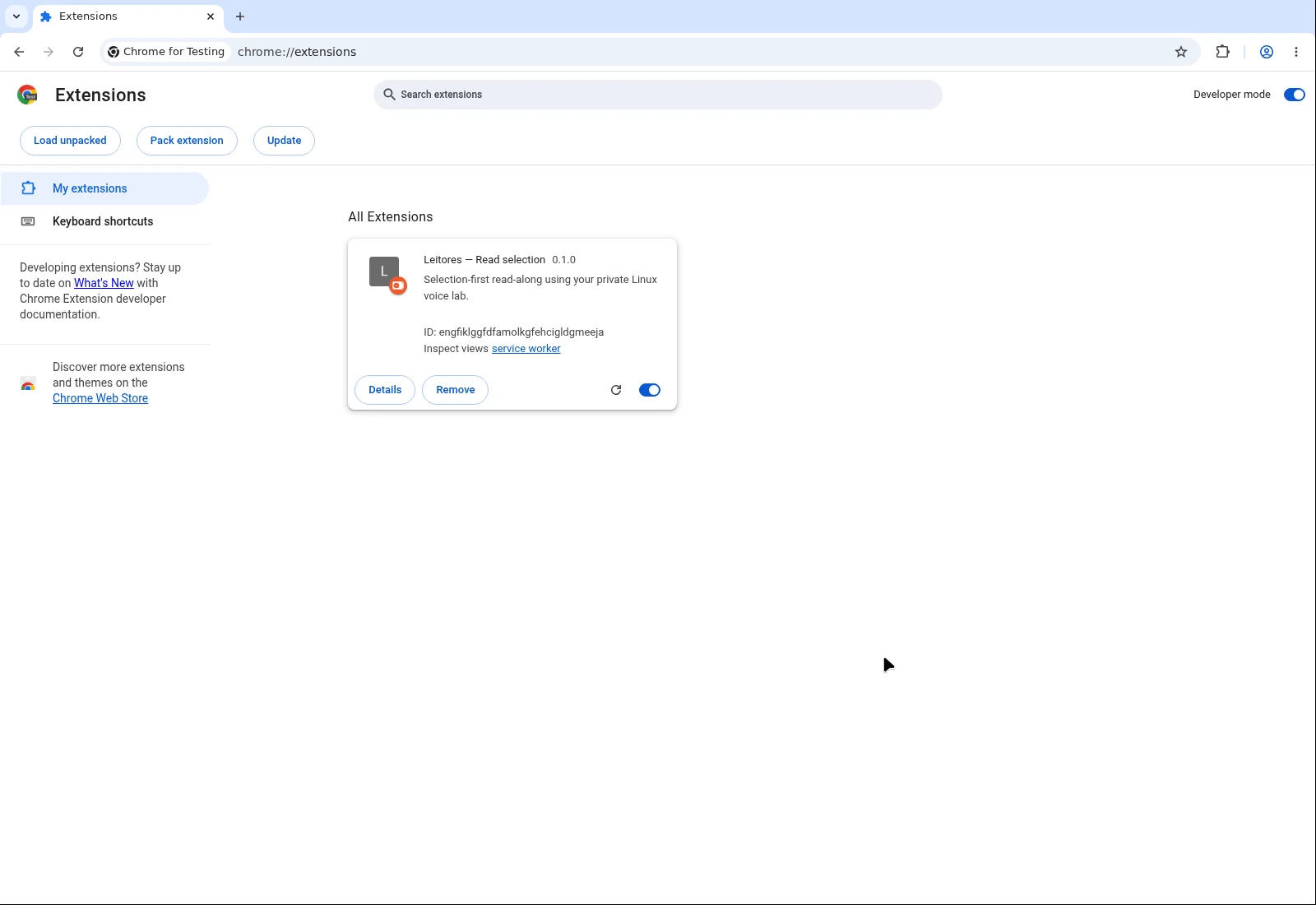 Install & pinCapture unavailable — use the written stepsOpen capture
 Repository access, clone command & folder
This is an unpacked developer preview, not a public download or Chrome Web Store release. The repository is private; a GitHub link or this command does not grant access. If you do not have access, arrange it with the project maintainer first.
With Git installed and your authorized repository access already configured:
git clone --branch v1-implementation-plan https://github.com/gabfr/leitores.gitLoad leitores/extensions/chrome from the resulting checkout. If you already have the project, use its extensions/chrome directory.
Extension source and setup documentation ↗ · Private repository access required.
Copy the Chrome extensions address
Paste this into Chrome’s address bar. A regular website link cannot reliably open a browser-internal page.
chrome://extensionsConnect your existing lab.
- Make sure the project’s compatible Chatterbox lab is already running and available to you. The extension does not include or create a server.
- Open Leitores from its toolbar icon. In Settings in the trusted native side panel, choose the supported host for your lab:
127.0.0.1:8765Localhost · preferred192.168.0.42:8765Supported LAN host
- Enter your supplied password, only in that panel. The username is fixed to
leitores; there is no separate username field. Never enter credentials on this website or a source webpage. - Press Connect / allow host. Approve Chrome’s optional host-permission request for the chosen supported host if prompted.
Expected outcomeThe panel reports a connected state and the password field clears. Connection alone does not authorize sending selected passage text.
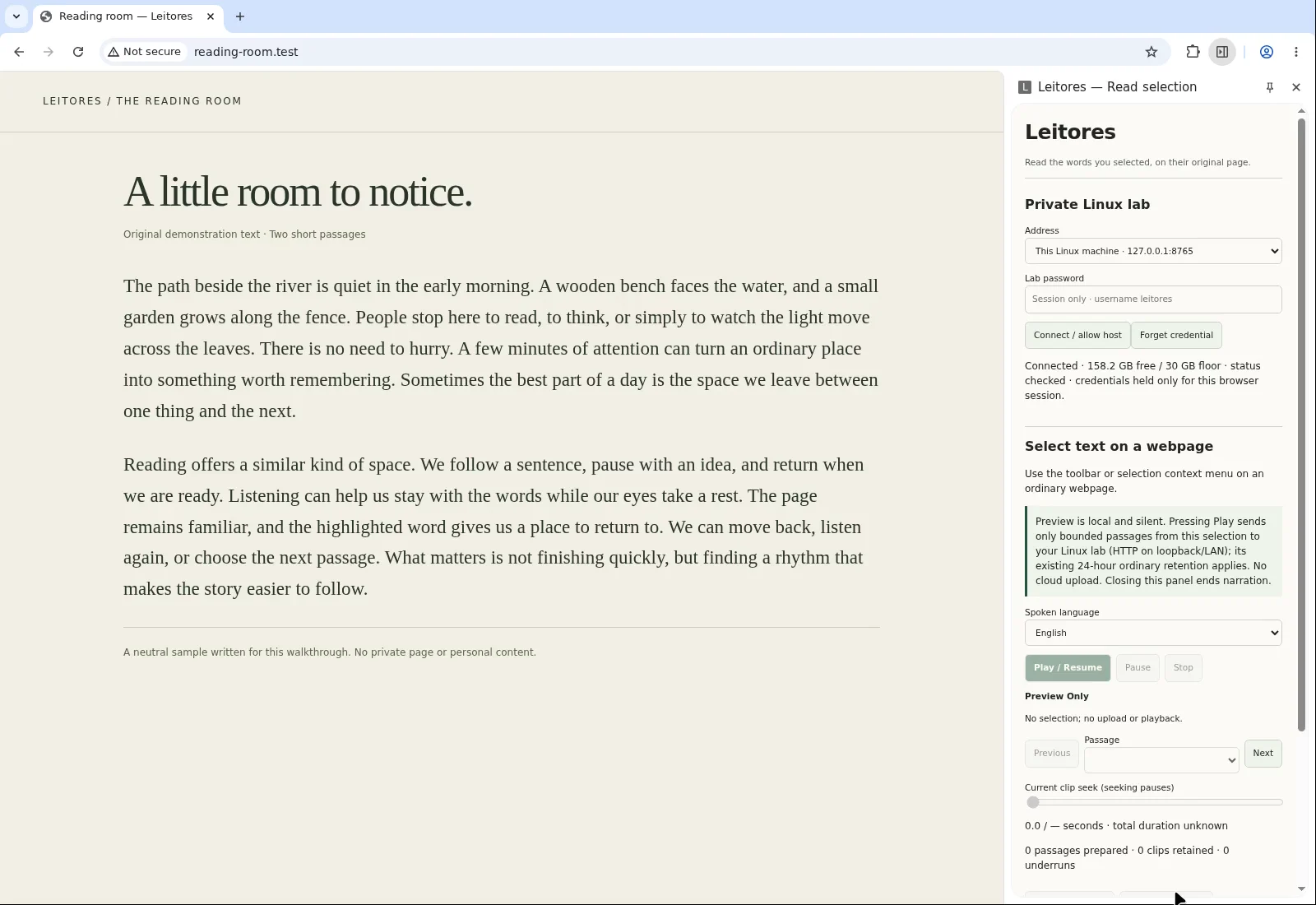 Connected, credentials clearedCapture unavailable — use the written stepsOpen capture
 Server compatibility, session credentials & HTTP
Only the existing project-compatible Chatterbox lab at the supported hosts above is in scope—not an arbitrary TTS endpoint, another port or a hosted speech API. See the lab setup and hardware documentation (private access required).
The supplied credentials are held in trusted extension session storage, not source-page content. The password field clears when connecting. Re-enter the password after a browser or extension restart; clearing the visible field is not a request to retype it during a working session.
The lab uses HTTP. On the LAN, text, credentials and audio are not encrypted in transit. Prefer localhost, use only a trusted network and do not expose the lab publicly.
Watch / Install, pin & openFocused setup clip · English captions · edited real recording
A place in your toolbar.
This recording could not load.
Use the written setup steps above.
Recording transcript
Recording transcript
Brackets describe on-screen actions. Other lines are the recorded narration. This is an edited demonstration at normal playback speed.
- 00:00 [Open chrome://extensions in a fresh browser profile.]
- 00:02 [Enable Developer mode, then choose Load unpacked.]
- 00:05 [Choose the extension folder, not the repository root.]
- 00:07 [Leitores is installed. Open an ordinary webpage.]
- 00:10 [Select text. Ctrl+Shift+Y opens Leitores.]
- 00:12 [Pin Leitores to the toolbar. Connect your lab separately before playback.]
Choose the words. Then listen.
- On an ordinary webpage, select a visible passage in the main page. Start with one short paragraph.
- Click the pinned Leitores icon to open Chrome’s native side panel. Review the capture, including the Exact selected source disclosure.
- Choose the passage’s language: English, Portuguese or Spanish. This chooses how the text is read; it does not translate the selection.
- When connected, press Play / Resume. This explicit action, with your language choice, authorizes the selected text to be sent to the lab.
- Allow preparation to finish. If Chrome requires another playback gesture, press Play / Resume again.
Expected outcomePrepared audio plays and highlighting follows words on the original page. Preview alone is silent and local; speech preparation can take time.
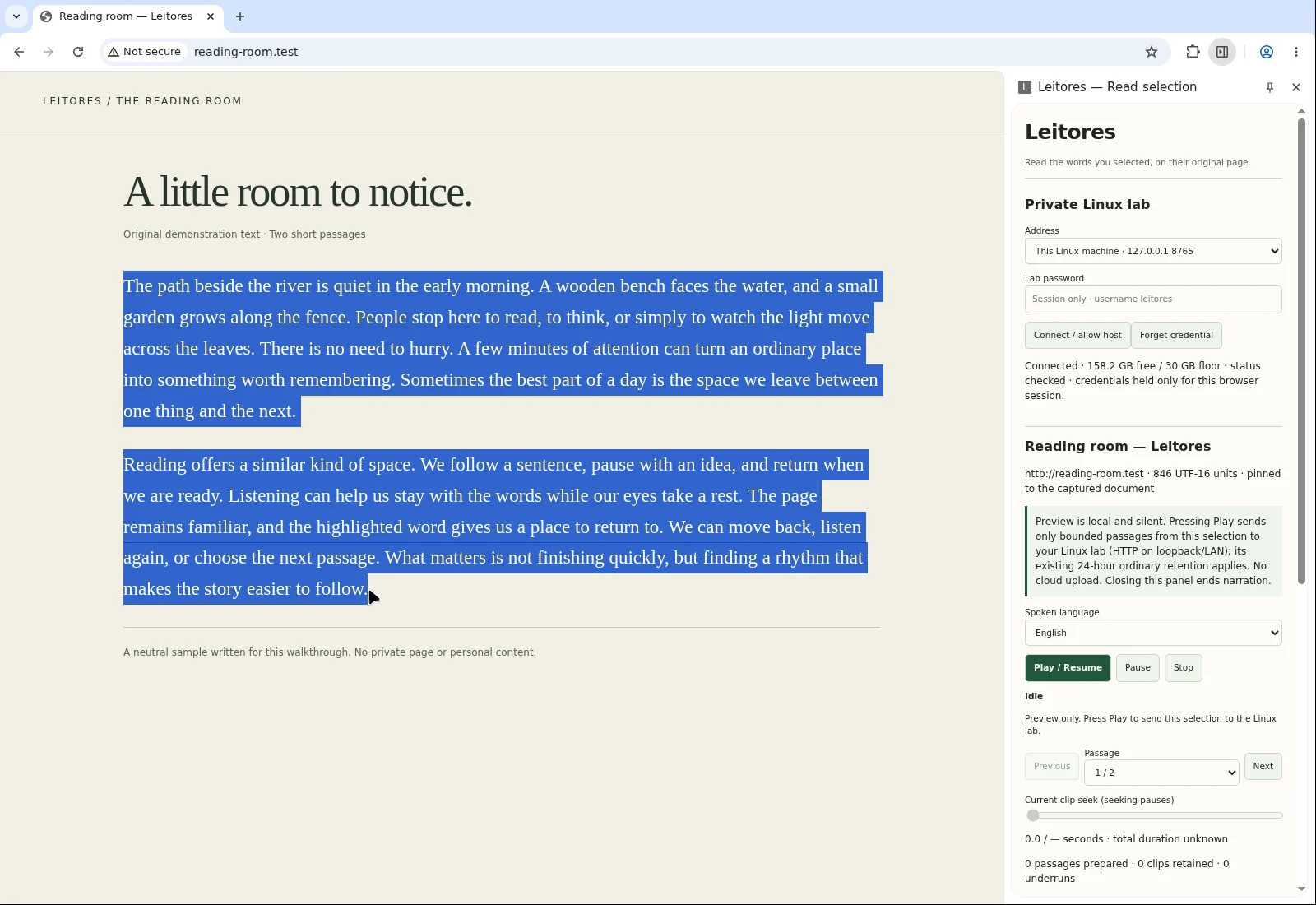 Your exact selectionCapture unavailable — use the written stepsOpen capture
 Use ordinary top-frame HTML. PDFs, browser-internal pages, editable text, shadow DOM and frame selections are not supported. See exact selection limits ↓
Watch / Select & startFocused reading clip · English captions · edited real recording
From selection to sound.
This recording could not load.
Use the written selection steps above.
Recording transcript
Recording transcript
Brackets describe on-screen actions. Other lines are the recorded narration. This is an edited demonstration at normal playback speed.
- 00:00 [The local lab is already connected. Select the original sample text.]
- 00:02 [Capture the selection in the native side panel.]
- 00:05 [Choose English, then Play / Resume.]
- 00:07 [Preparing speech. This wait is shortened in the edited video.]
- 00:09 The path beside the river is quiet in the early morning.
- 00:11 A wooden bench faces the water, and a small garden
- 00:14 grows along the fence. People stop here to read, to
- 00:16 think,
Keep the pace in your hands.
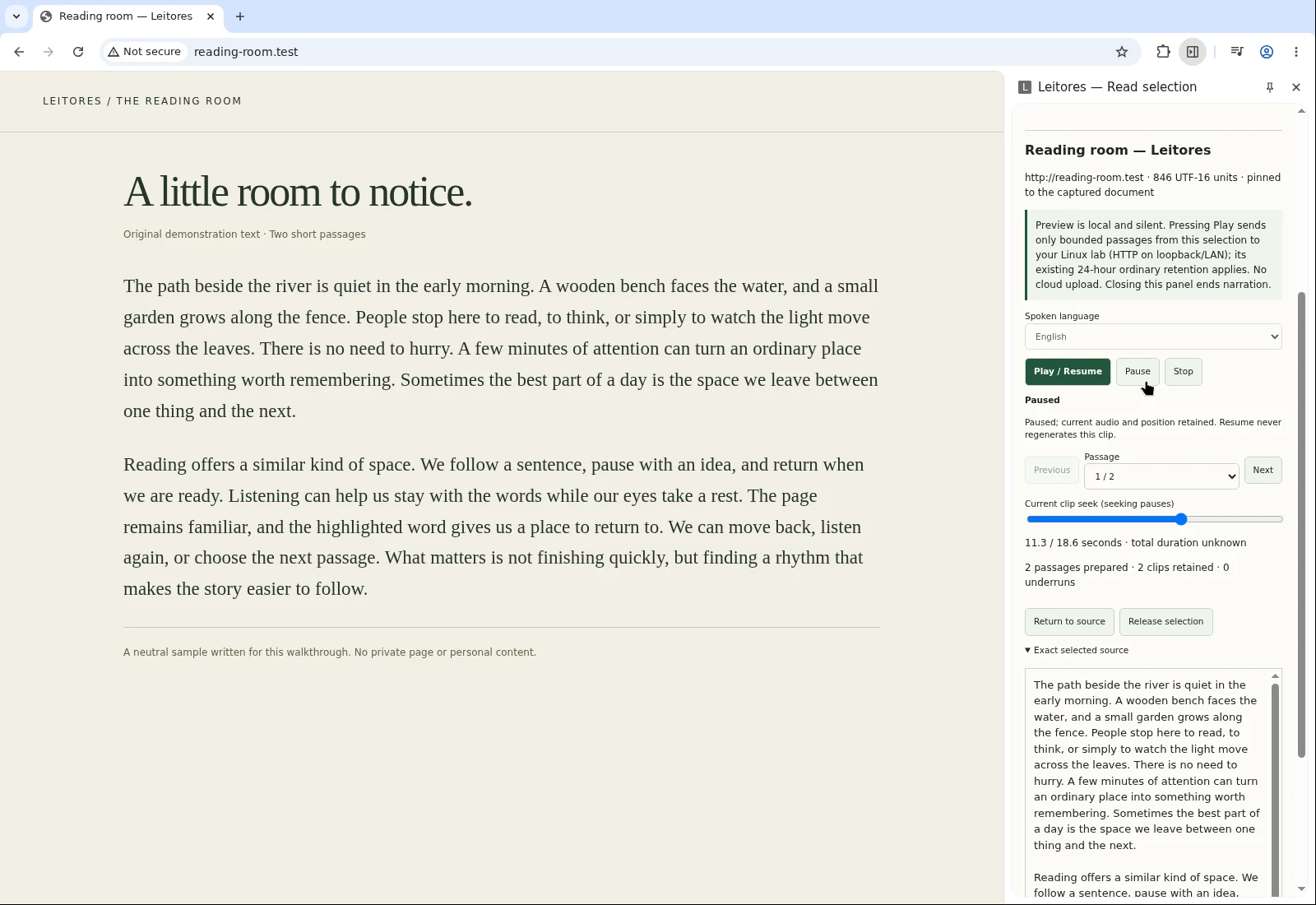
Try Pause during prepared playback, then Play / Resume. Next, move the seek control. Notice that moving through the audio is separate from authorizing it to play.
- Pause → Play / Resume
- Pause retains the current playback clock. Play / Resume continues from that place rather than resetting the clip.
- Seek
- Choose a position within the prepared clip. Seeking leaves playback paused—even if audio was playing. Press Play / Resume when ready.
- Previous / Next
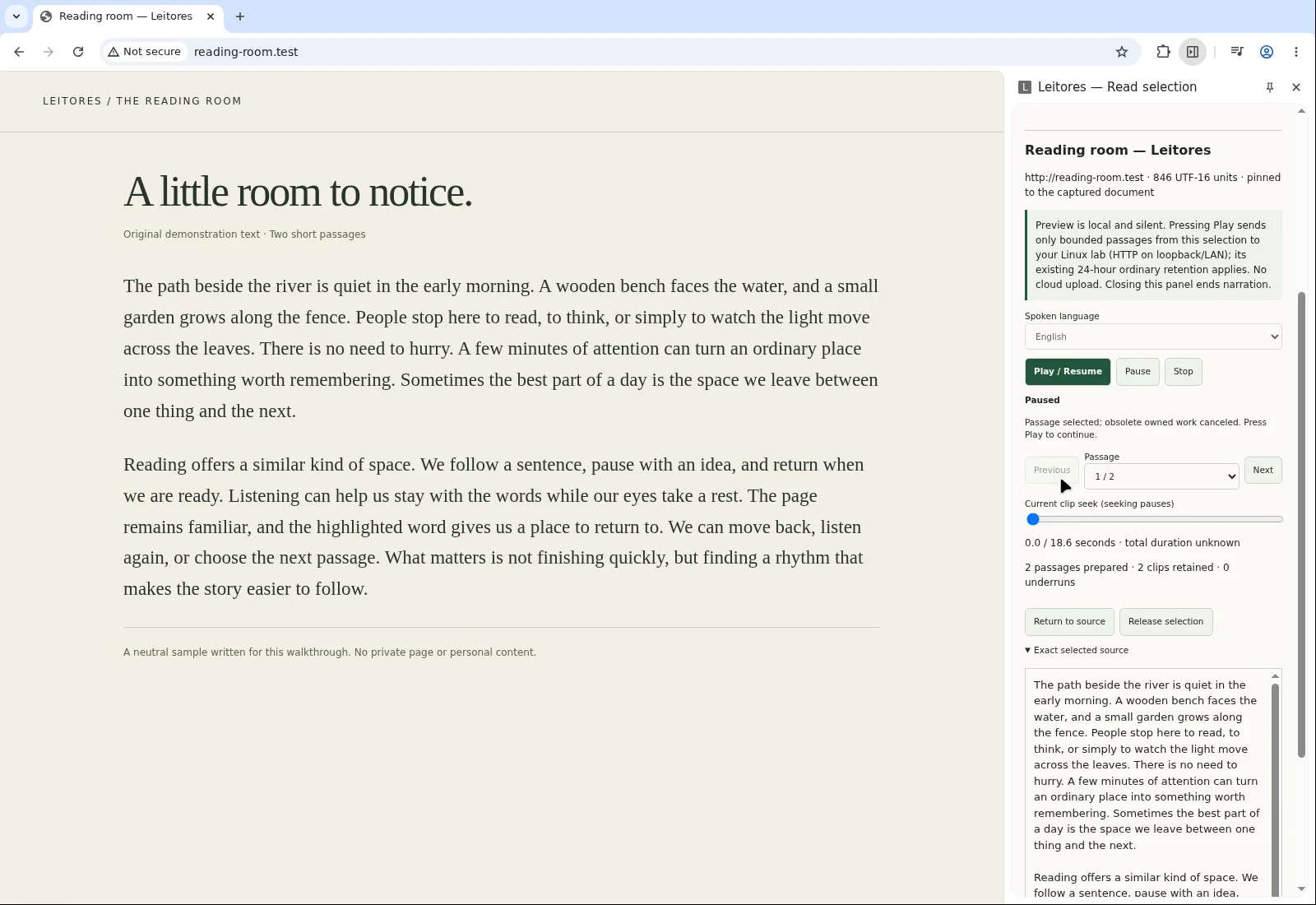
- Move between passages when available. Navigation stays paused pending an explicit Play / Resume; it is not automatic playback.
- Stop
- Stop resets the current clip to its beginning. It is not the same as releasing the captured selection.
- Return to source
- Restore the pinned source tab to see the passage in context. It does not capture a new selection.
- Release selection
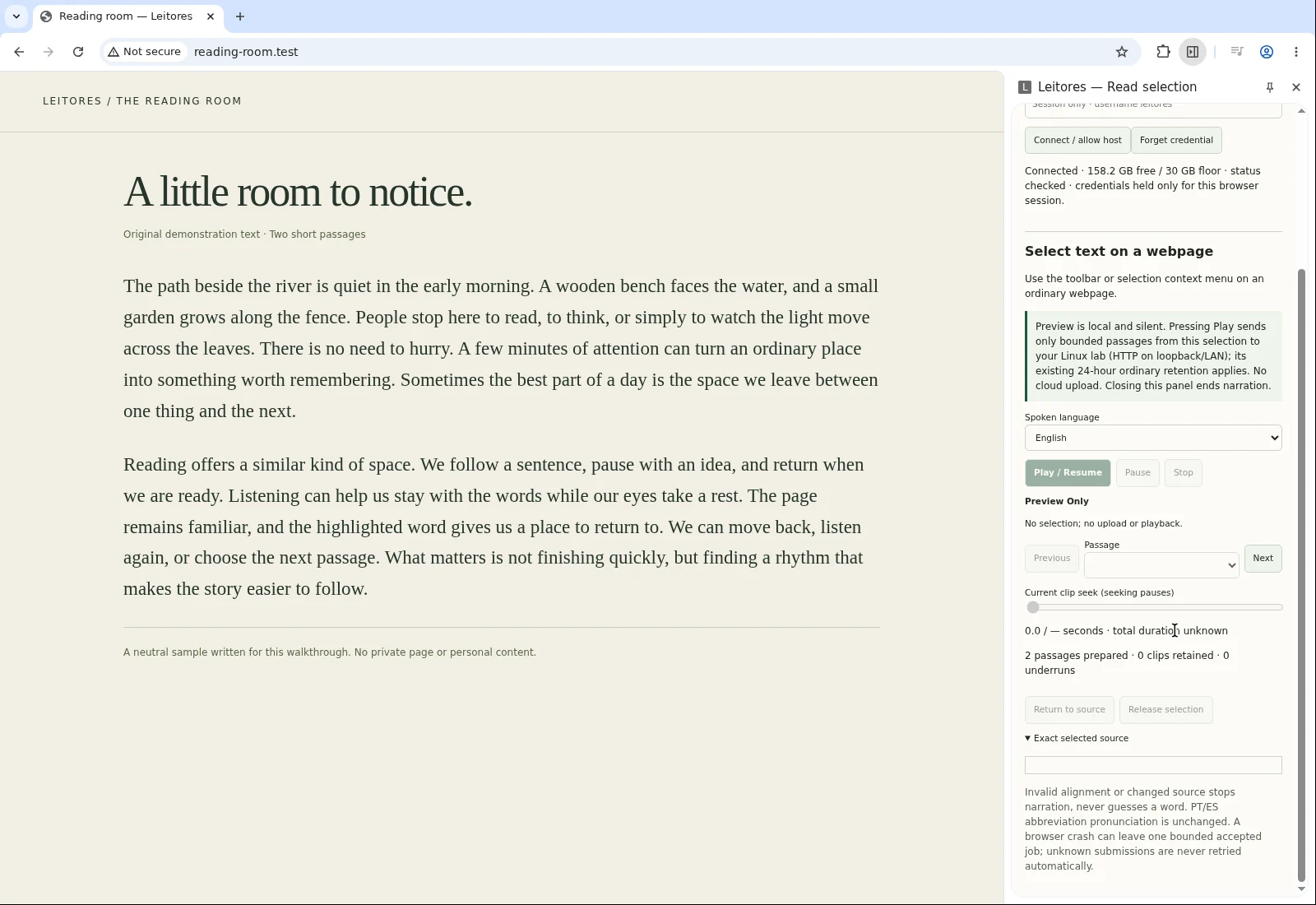
- Let go of the pinned capture so another selection can be captured. Use this when you are ready for new text.
Expected outcomePause keeps the clock; seek and passage navigation wait for your next Play / Resume. Stop resets the current clip. Closing the side panel ends playback.
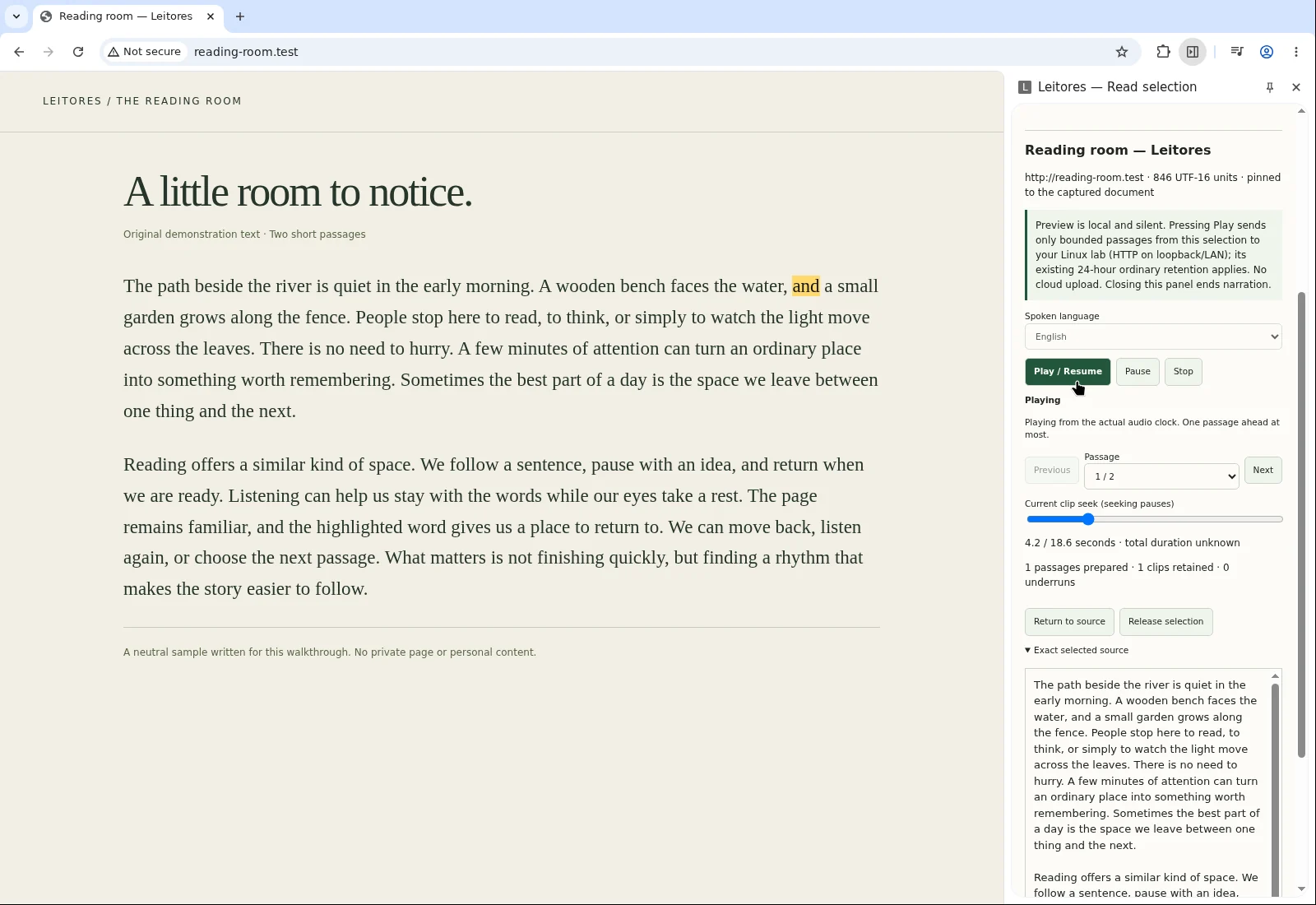 Following the wordsCapture unavailable — use the written stepsOpen capture
  A place kept for youCapture unavailable — use the written stepsOpen capture
 Watch / Pause & resumeFocused playback clip · English captions · edited real recording
A pause is a real pause.
This recording could not load.
Read the control reference above.
Recording transcript
Recording transcript
Brackets describe on-screen actions. Other lines are the recorded narration. This is an edited demonstration at normal playback speed.
- 00:00 move across the leaves. There is no need to hurry.
- 00:02 A few minutes
- 00:02 [Paused. The playback position is retained.]
- 00:05 minutes of attention can turn an ordinary place into something
- 00:08 worth remembering.
The next passage. A fresh selection.
- For another passage in the current capture, use Previous or Next when available, then explicitly press Play / Resume.
- To find your current source page, choose Return to source. This restores the pinned source tab.
- For different text, choose Release selection. Select a new passage on an ordinary page, then use the toolbar icon to capture it in the native panel.
- Review Exact selected source again, choose the text’s language, and press Play / Resume only when you want it sent.
Expected outcomeThe new preview matches the new passage. Recapture itself does not authorize an upload. Navigation or a change to the source DOM invalidates the old selection; capture again rather than continuing with a stale source.
 Back to the sourceCapture unavailable — use the written stepsOpen capture
  Room for a new passageCapture unavailable — use the written stepsOpen capture
 Watch / Previous, Stop & recaptureFocused navigation clip · English captions · edited real recording
Another thought to follow.
This recording could not load.
Read the navigation instructions above.
Recording transcript
Find your way back.
Start with the state you can see. These are written recovery steps, not fabricated error screenshots.
The panel is not connected.
Check that your compatible lab is running at one of the two supported hosts. In the trusted panel, enter the supplied credentials and use Connect / allow host. If you declined the optional host permission, review that request before trying to connect again.
Unpacked installation is not a server setup, and substituting an arbitrary endpoint will not work. If the lab is unavailable, ask its operator to check it; do not keep submitting reading requests.
Look for: the connected state before authorizing playback.
It is waiting, preparing or buffering.
Speech and word alignment need preparation. The extension can prepare up to one passage ahead; this does not guarantee instant startup or gapless passage transitions. Allow the active preparation to finish instead of repeatedly pressing Play or reconnecting.
If progress stalls, check the visible panel message and ask the lab operator about availability. Do not submit duplicates to test whether it is working.
Look for: a prepared clip or an actionable panel message, not an assumed fixed wait time.
Audio is ready, but it has not started.
Chrome may require another user gesture after preparation. Press Play / Resume in the native panel again. Also remember that seek, Previous and Next deliberately leave playback paused.
Look for: advancing playback and source highlighting after that explicit action. If still silent, check Chrome’s normal tab/system audio settings and the panel message.
My selection is missing or unsupported.
Start with a short, visible paragraph in ordinary top-frame HTML. Browser pages, PDFs, editable fields, shadow DOM and frame selections are out of scope. Captures cannot exceed 20,000 UTF-16 units.
If a different selection is pinned, choose Release selection, select the new text and use the toolbar icon to capture again. Open Exact selected source to check it.
Look for: a preview matching the text you intended, before Play / Resume.
The source changed or I navigated away.
Navigation and source DOM changes invalidate the capture. Use Return to source when useful, release any stale selection, then select and capture a fresh passage. Do not expect the old word positions to apply to a rewritten page.
Look for: a valid new capture and an accurate Exact selected source disclosure.
I restarted Chrome or reloaded the extension.
Credentials are session-scoped. Re-enter the supplied password in the trusted panel and use Connect / allow host again. This website cannot restore or collect it. Closing the panel also ends playback; do not treat it as a background audio player.
Look for: a connected panel before selecting and explicitly starting a reading.
Back to the words, whenever you’re ready.
Return to the reading room